
关于此 MOD
Using WickerREST to enhance game functionality, it allows players to spawn villagers, spawn resources, reveal maps, manipulate game variables, and more through a convenient web interface. This tool is designed to provide both fun and
Wicker Toolbox is a comprehensive mod for Farthest Frontier that leverages the power of WickerREST to enhance game functionality. It allows players to spawn resources, reveal maps, manipulate game variables, and more through a convenient web interface. This tool is designed to provide both fun and utility, making it easier to customize your gameplay experience.
Usage:
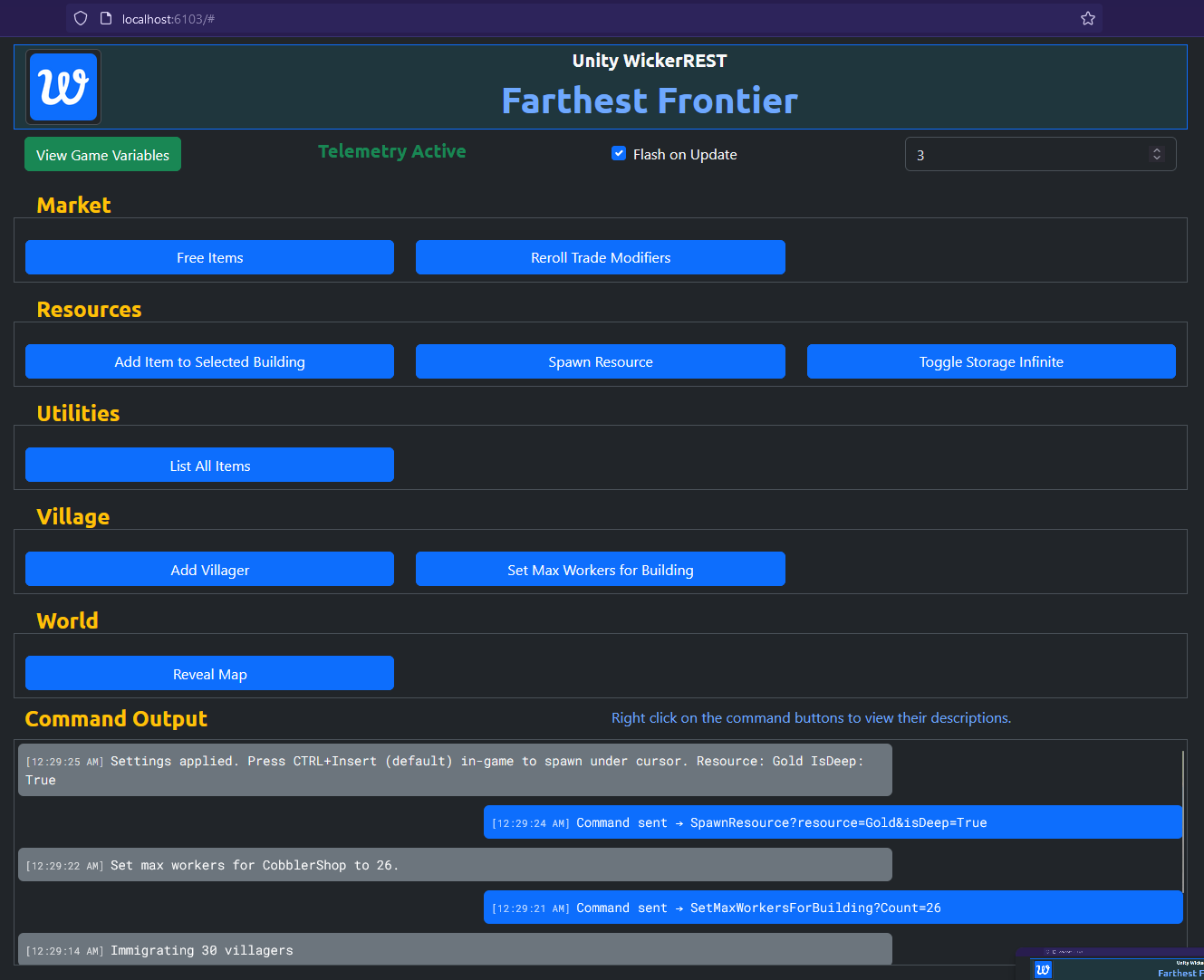
To use Wicker Toolbox, start the game, then open the web interface provided by WickerREST by navigating to localhost:6103 or http://localhost:6103.
The mod introduces several key features and commands to enhance gameplay:
- Build Anywhere: Want to build on the side of a cliff? Strange road shape? Maybe put your whole village on one set of 5x5 tiles? Let's do it.
- Spawn Resources: Allows for spawning resources like Gold, Stone, or any other in-game material right under the cursor.
- Set Max Worker Count: Set the max worker count for any building at your choosing!
- Custom Camera Settings: Choose your custom camera settings in menu!
- Add Any Item to Building: Through a simple window, you can add any item of any quantity to a building!
- Set Storage Capacity: Set capacity number for any building!
- Free Items at the Market: Toggle the price of all items at the market to be 0 or original.
- Reroll Trade Modifiers: Is your trader less than fantastic? Let's reroll their modifiers.
- Reveal Map: Instantly removes the fog of war, revealing the entire map without needing to explore.
- Set Infinite Storage: Any building can now have infinite storage! Toggle it here. Select 'View Game Variables' to monitor which storages are infinite!
- Adjust Game Variables: Modify in-game variables in real time, such as making items free or manipulating villager counts.
- Image from version 1.0.4
Configuration:
Configuration options are available within the `Toolbox.cfg` file, located in your `UserData` folder after the first run. Key settings, such as the hotkey for triggering commands (default: Insert), can be customized here. This flexibility allows you to tailor the mod's functionality to your preferences and play style.
Installation Instructions
Step 1: Install MelonLoader
- Follow the instructions on the MelonLoader GitHub (effectively drag and drop or run the installer).
Step 2: Install WickerREST
- Proceed to NexusMods and download WickerREST. If you followed the MelonLoader installation correctly, you should find a folder named "Mods" here.
- Copy the downloaded WickerREST.dll file into the "Mods" folder.
Step 3: Install the Mod
- Open your Farthest Frontier game directory. If you followed the MelonLoader installation correctly, you should find a folder named "Mods" here.
- Copy the downloaded Wicker Toolbox mod file into the "Mods" folder.
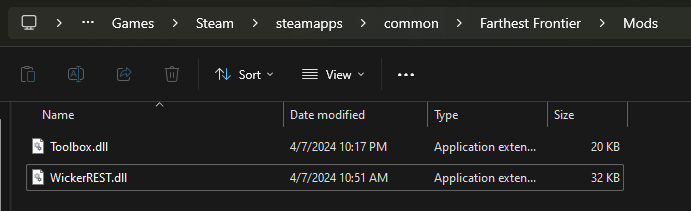
Our .dll name may differ
This toolbox is designed to be both powerful and easy to use, offering a wide range of functionalities to Farthest Frontier players looking to customize their game experience. Whether you're looking to experiment with the game mechanics, overcome a difficult challenge, or just have some fun, Wicker Toolbox provides the tools you need.
Are you a developer? Do you want to make or add your own commands or variables? See below!
Main project repository is available at this link
Sample project repository is available at this link
Wicker Toolbox for Farthest Frontier
Wicker Toolbox is a comprehensive mod for Farthest Frontier that leverages the power of WickerREST to enhance game functionality. It allows players to spawn resources, reveal maps, manipulate game variables, and more through a convenient web interface. This tool is designed to provide both fun and utility, making it easier to customize your gameplay experience.
Usage:
To use Wicker Toolbox, start the game, then open the web interface provided by WickerREST by navigating to localhost:6103 or http://localhost:6103.
The mod introduces several key features and commands to enhance gameplay:
- Build Anywhere: Want to build on the side of a cliff? Strange road shape? Maybe put your whole village on one set of 5x5 tiles? Let's do it.
- Spawn Resources: Allows for spawning resources like Gold, Stone, or any other in-game material right under the cursor.
- Set Max Worker Count: Set the max worker count for any building at your choosing!
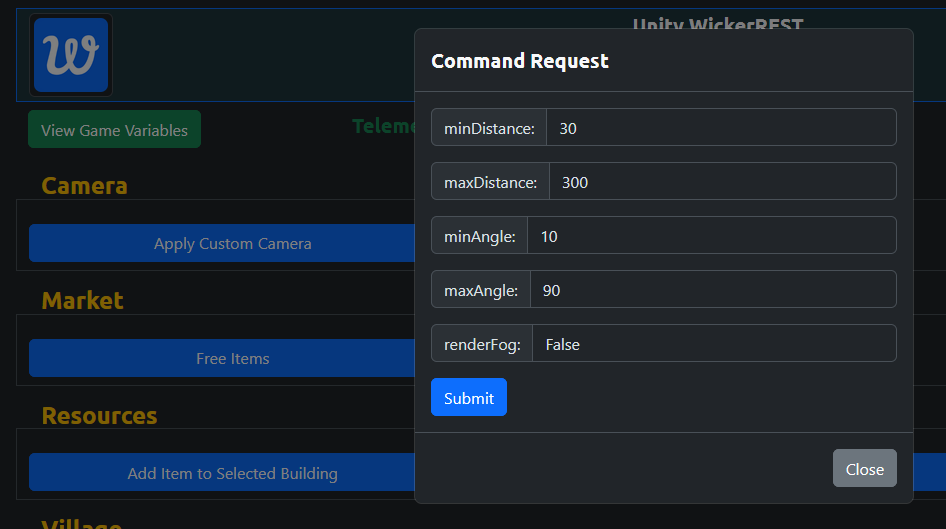
- Custom Camera Settings: Choose your custom camera settings in menu!
- Add Any Item to Building: Through a simple window, you can add any item of any quantity to a building!
- Set Storage Capacity: Set capacity number for any building!
- Free Items at the Market: Toggle the price of all items at the market to be 0 or original.
- Reroll Trade Modifiers: Is your trader less than fantastic? Let's reroll their modifiers.
- Reveal Map: Instantly removes the fog of war, revealing the entire map without needing to explore.
- Set Infinite Storage: Any building can now have infinite storage! Toggle it here. Select 'View Game Variables' to monitor which storages are infinite!
- Adjust Game Variables: Modify in-game variables in real time, such as making items free or manipulating villager counts.
- Image from version 1.0.4
Build Anywhere!

Custom Camera Prompt
Configuration:
Configuration options are available within the `Toolbox.cfg` file, located in your `UserData` folder after the first run. Key settings, such as the hotkey for triggering commands (default: Insert), can be customized here. This flexibility allows you to tailor the mod's functionality to your preferences and play style.
Installation Instructions
Step 1: Install MelonLoader
- Follow the instructions on the MelonLoader GitHub (effectively drag and drop or run the installer).
Step 2: Install WickerREST
- Proceed to NexusMods and download WickerREST. If you followed the MelonLoader installation correctly, you should find a folder named "Mods" here.
- Copy the downloaded WickerREST.dll file into the "Mods" folder.
Step 3: Install the Mod
- Open your Farthest Frontier game directory. If you followed the MelonLoader installation correctly, you should find a folder named "Mods" here.
- Copy the downloaded Wicker Toolbox mod file into the "Mods" folder.
Our .dll name may differ
This toolbox is designed to be both powerful and easy to use, offering a wide range of functionalities to Farthest Frontier players looking to customize their game experience. Whether you're looking to experiment with the game mechanics, overcome a difficult challenge, or just have some fun, Wicker Toolbox provides the tools you need.
Are you a developer? Do you want to make or add your own commands or variables? See below!
Main project repository is available at this link
Sample project repository is available at this link
最远的边陲 的热门 MOD
探索适用于 最远的边陲 的最佳MOD,带来新功能、升级画面,以及令人兴奋的方式来改变您的游戏体验。
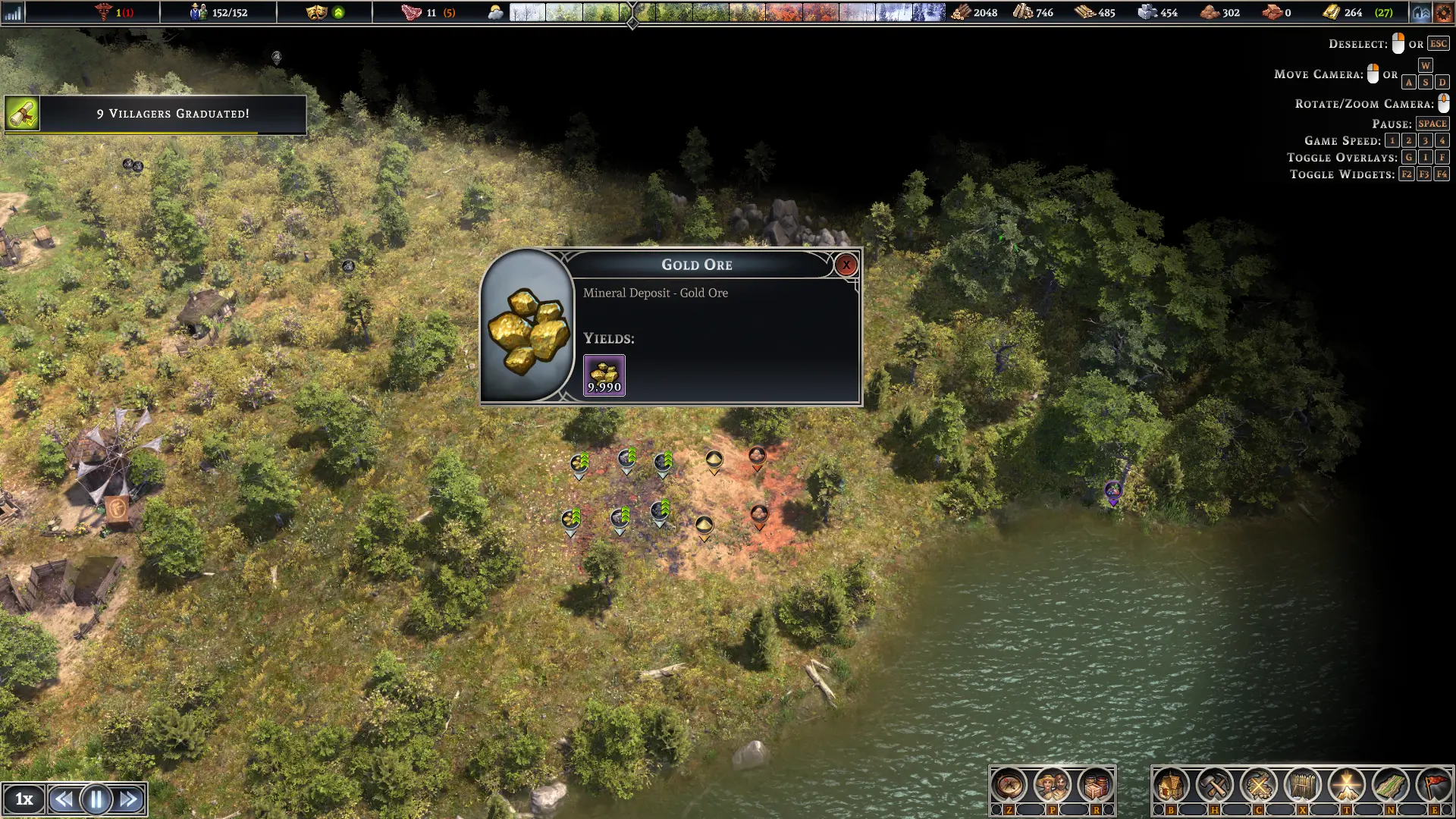
矿物产卵器
paboyafx2025-04-27 14:10:13
产卵矿物(金、铁、煤)、粘土和沙子场地、开挖场地
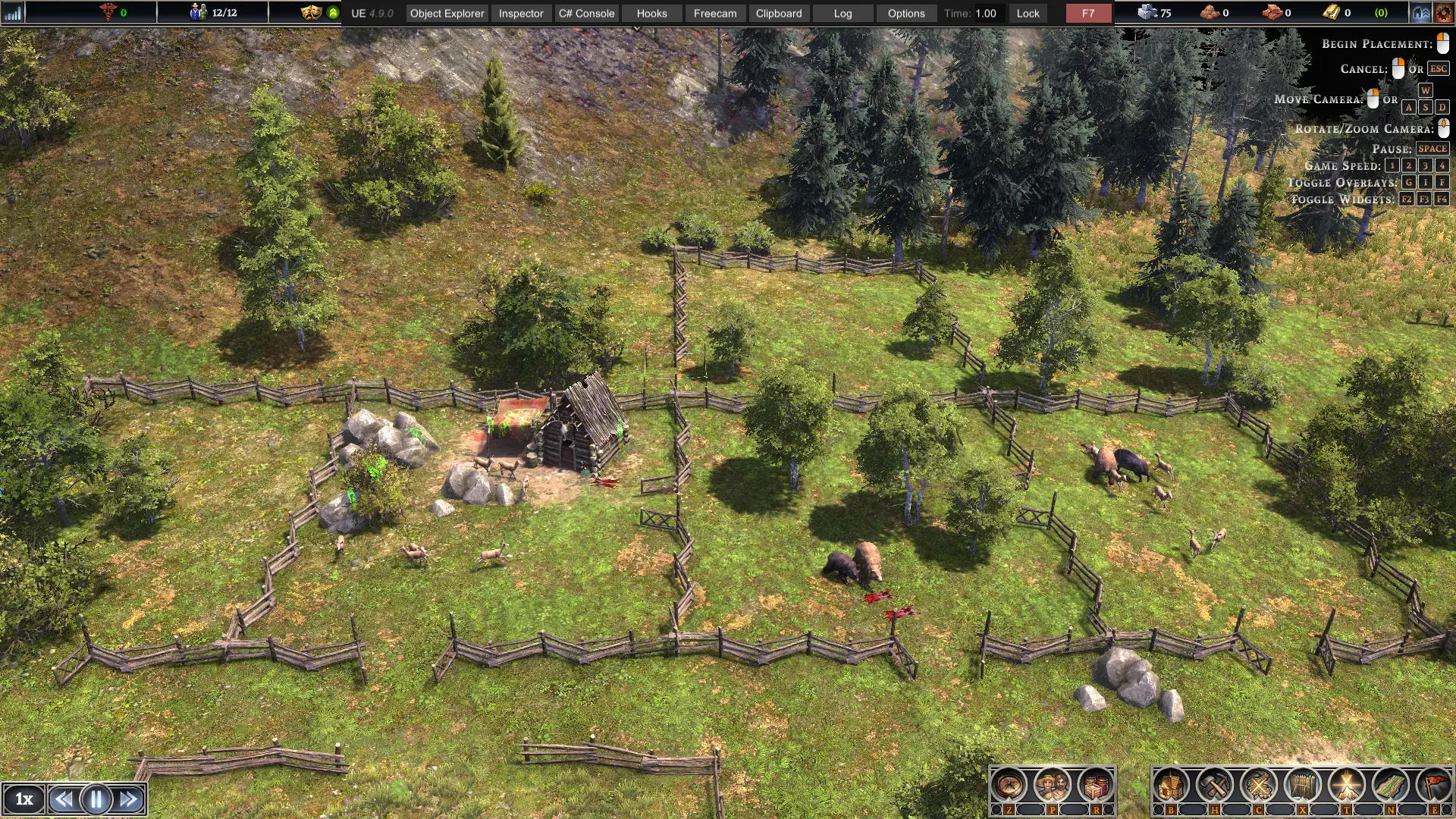
Animal Spawner
paboyafx2022-08-17 01:22:15
Spawn animals for food like Deer, Boar, Wolf and Bear AND Wolf Den AND Fish
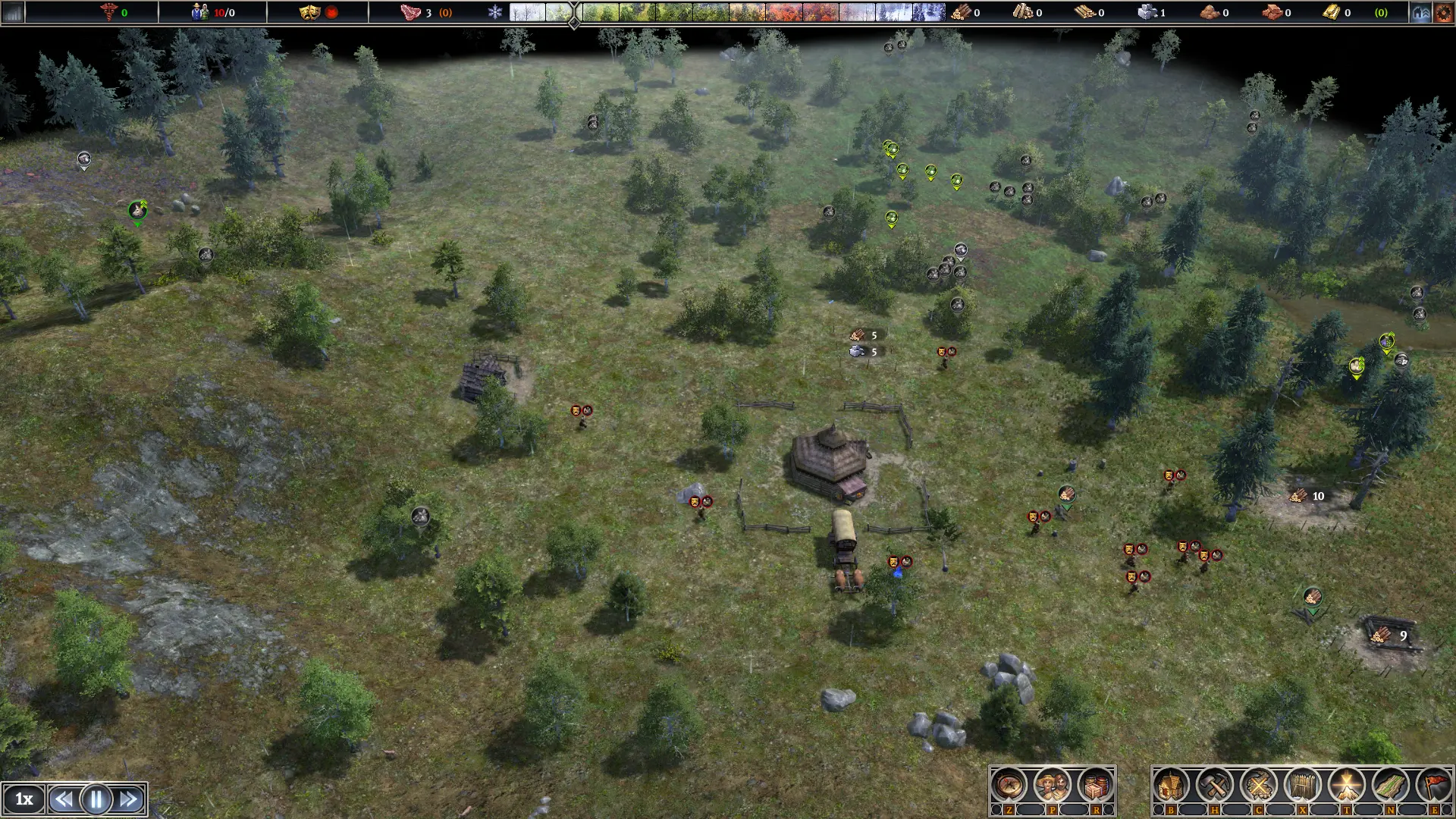
Move Resource Mod
paboyafx2025-04-03 16:46:36
Spawn forageable resource like berries, bushes, eggs, roots. And also stone, and also spawn trees under your mouse cursor
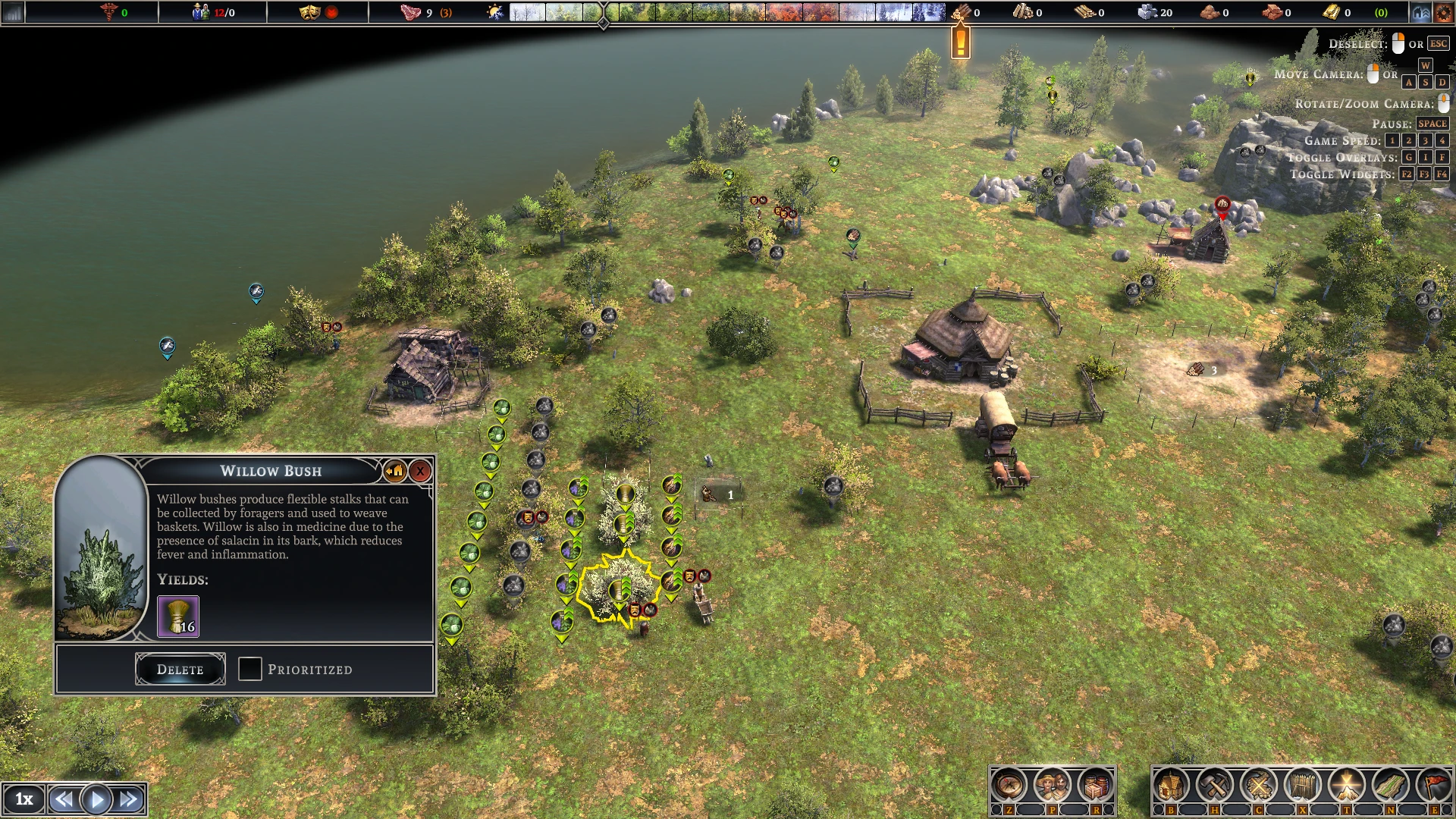
Relocate Resource
paboyafx2024-08-05 00:57:44
Relocate all forageable resources with vanilla relocate button
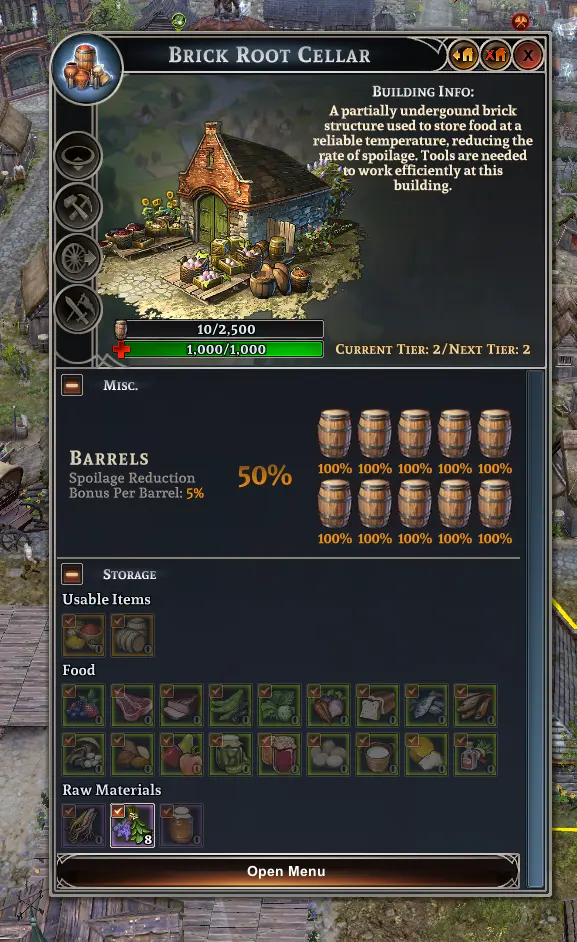
Add Item With UI button
donimuzur2025-01-13 22:36:53
Add Item to selected werehouse building
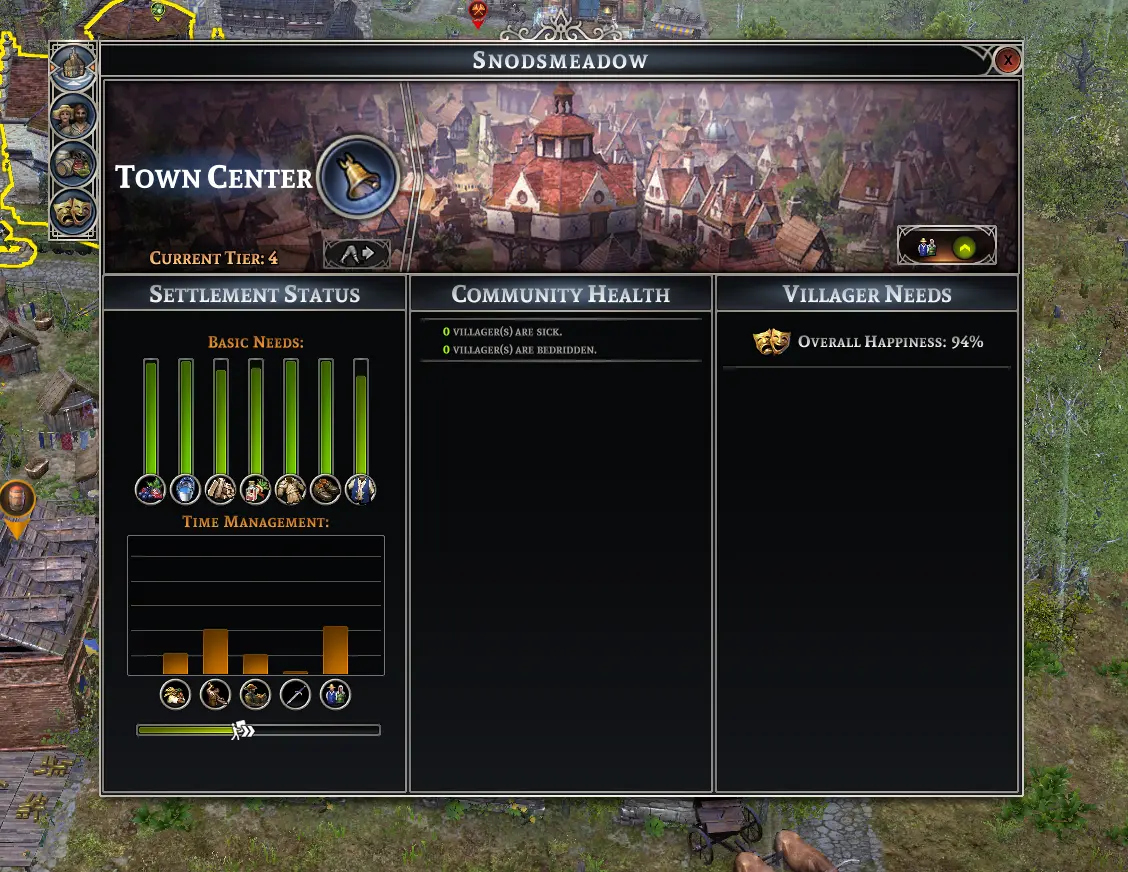
添加村民
donimuzur2025-06-21 10:47:23
用镇中心按钮即时生成村民

理想半径检修
donimuzur2023-02-05 21:54:21
增加建筑半径,增加吸引力
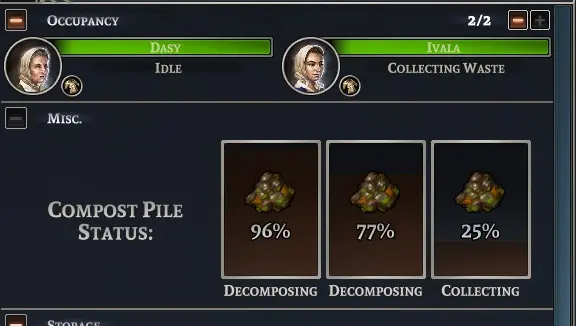
堆肥场检修
CeeBYL2023-02-05 21:58:45
(以前是AutoFertilize)使堆肥场自动化,并增加最大工人人数。